Installing Qube!
The goal of this section is to get you to install and run Qube! as quickly as possible.
A Qube! farm has 3 main components:
-
The Qube! clients, machines that submit jobs. Typically these are artists or end-users workstations.
-
The Qube! workers, machines that run jobs. A client can also be a worker.
-
The Qube! supervisor, which controls what jobs are sent to which workers.
You will install a Supervisor, a Worker and a Client, and then submit a job from the Client to the Supervisor, which will hand it off to the Worker. All three of these roles can be played by the same machine, so if you want to investigate Qube! on a single laptop, you can do that. Or if your ambitions are larger, you can do that from here as well. Whatever your final goal, to install and start using Qube!, follow these steps.
Before You Begin
Ensure shared file storage
Qube! was designed to work with render farms utilizing shared file storage. While it is possible to write job submissions that collect and copy data to individual workers before rendering, this is not part of Qube's core functionality.
Considerations for new render farms:
- What do you use for shared file storage?
- How are permissions managed for this filesystem?
- Is the file system world-writeable, or are permissions granted on a per-user basis?
Determine job execution mode
The Qube! worker can run either as a daemon (a "system service" on Windows), or a user process. When it runs as a user process, it's said to be running in Desktop User (DU) mode. When it runs as a daemon, it's said to be running in Service mode.
Desktop User (DU) mode
- The worker process is started by a logged in user, usually when that user logs in, and is killed when the user logs out
- The worker process is owned by the logged in user
- The worker process does not re-authenticate, and all jobs are run by the user who owns the worker process
- The worker process has full access to the screenspace
Desktop User mode is the default option for new installations
Service mode
- The worker process is usually started at system boot time and runs as long as the system is up
- The worker process runs as either a Windows service or a daemon owned by the root user on macOS and Linux.
- The worker process will run jobs under a user other than root or the system service. This user is determined by the proxy_execution_mode value:
- proxy_execution_mode = proxy
- means it will always authenticate as the user defined in proxy_account.
- proxy_execution_mode = user
- means it will always authenticate as the user who submitted the job.
In Service mode the worker process will be unable to access screenspace on Windows and macOS; no processes will be able to render to a hardware buffer, applications that can only run by displaying their full GUI will usually not be able to start, etc..
For Nvidia GPUs to be accessible to Windows workers running in Service mode the GPUs must be from the RTX PRO/Quadro lines of professional cards running Tesla Compute Cluster (TCC) drivers. To access GeForce GPUs running WDDC drivers the worker must be in DU mode.
Proxy user account (if applicable)
If the execution_mode is to be "Proxy", then it remains to be determined whether to use a proxy account on the local machine or a network account. The default behavior is to use a local proxy user account; a local account named "qubeproxy" is automatically created during the worker installation process. If it is necessary to use a network or ActiveDirectory account for the proxy user:
Windows
It's simple to use an ActiveDirectory account for the proxy account. Simply create a user account in the ActiveDirectory that is NOT named "qubeproxy" (to avoid confusion with the local proxy account). This allows the proxy account to be present in any ACL�s (Access Control Lists) for the filesystem permissions.
macOS
If the proxy account is to be a network account, the proxy user's home directory should be local on all machines, or mounted by NFS at startup. If the home directory is mounted at login via AFP or SMB, Qube! won't be able to use this account since the proxy user never actually "logs in". In this case, the execution_mode will have to be set to Desktop user mode.
Linux Prerequisites
On Linux, several packages must be present before Qube! can be installed, and some pre-configuration is needed.
Install whatever version yum/dnf will find in the base repository for your version of Rocky/CentOS/RHEL.
Qube! Installer requires the Qt5Core DSO to be available on the system. Check that you have the "qt5-qtbase" package installed, especially if you are attempting to run it on a "minimal" or "server" OS installation.
Linux Supervisor prerequisites:
-
install
-
python3
-
xinetd
-
qt5-qtbase
-
-
disable:
-
firewall
-
SElinux
-
Linux Worker prerequisites:
-
install
-
python3 (if using any Python-based jobtypes, such as the built-in pyCmdrange and pyCmdline)
-
xinetd
-
qt5-qtbase
-
-
disable
-
firewall
-
SElinux
-
Linux Client prerequisites:
- < none >
Install and Go
Manually Installing the Qube! 8 Supervisor on Windows
If you intend to manually install a Qube! 8 supervisor on Windows rather than using the Qube! Installer, please refer to the Installing Qube! Manually page for instructions on running the "supe_postinstall.bat" script after installation in order to initialize the databases; this step is normally performed by the Qube! Installer wizard, as Windows security policies prohibit certain operations from being performed by an MSI installer directly.
Follow these steps:
- Download the Install Wizard
- Launch the Install Wizard
- Install the Supervisor
- Install a Worker & Client
- Submit Test Jobs
That's it! After you've got this far, you can submit jobs for hero applications such as Maya, 3dsMax, Nuke, and many others.
Additional Possibilities
Alternatively, you can continue with Qube! administration tasks. The Administrator's Guide explains how to keep building up your Qube! installation, including:
Download the Install Wizard
The Qube! Install Wizard can be downloaded from the PipelineFX website.
Launch the Install Wizard
Windows
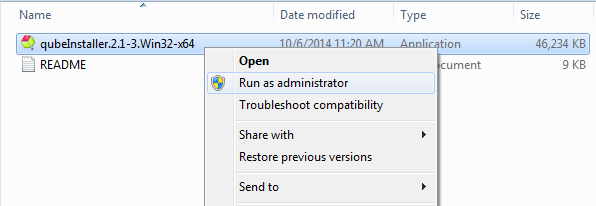
Extract the contents of the installer zip file. Go into the folder created, right mouse click on the installer file, and run as administrator.
macOS
Double-click on the dmg file that you downloaded. You should see this:
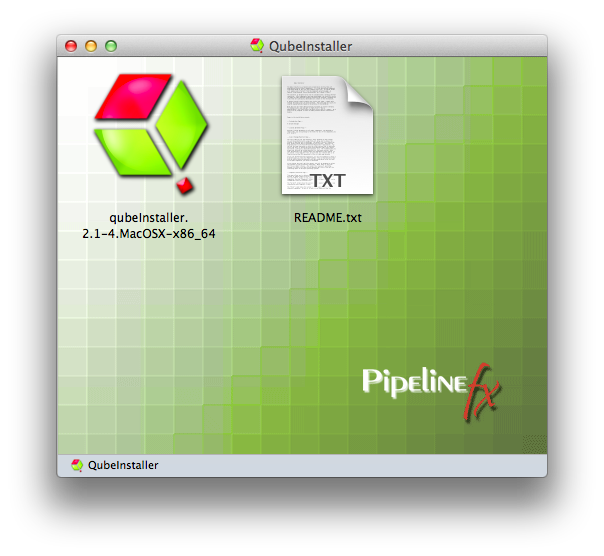
Then double-click on the qubeInstaller icon.
Linux
For Linux, the steps are:
$ cd /path/to/downloaded/installer $ tar xvzf qubeInstaller.CentOS_6.5.x86_64.tgz # Note: of course the file name may differ depending on your Linux distribution $ cd qubeInstaller-2.1-2.CentOS_6.5.x86 # move into the directory that was just created $ sudo ./qubeInstaller.2.1-2.CentOS_6.5 # run the installer with sudo or as root
All OSs
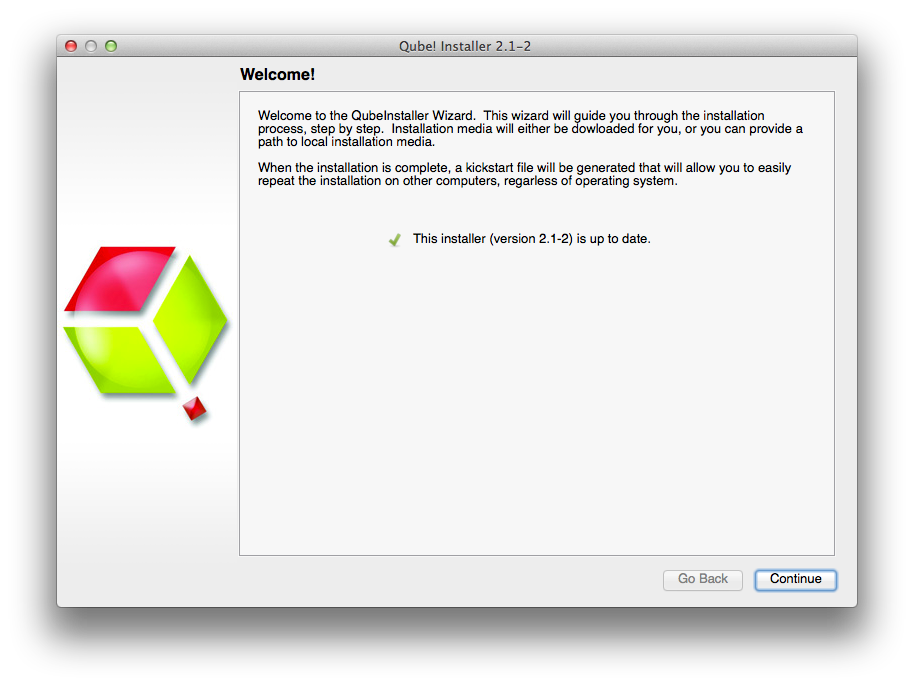
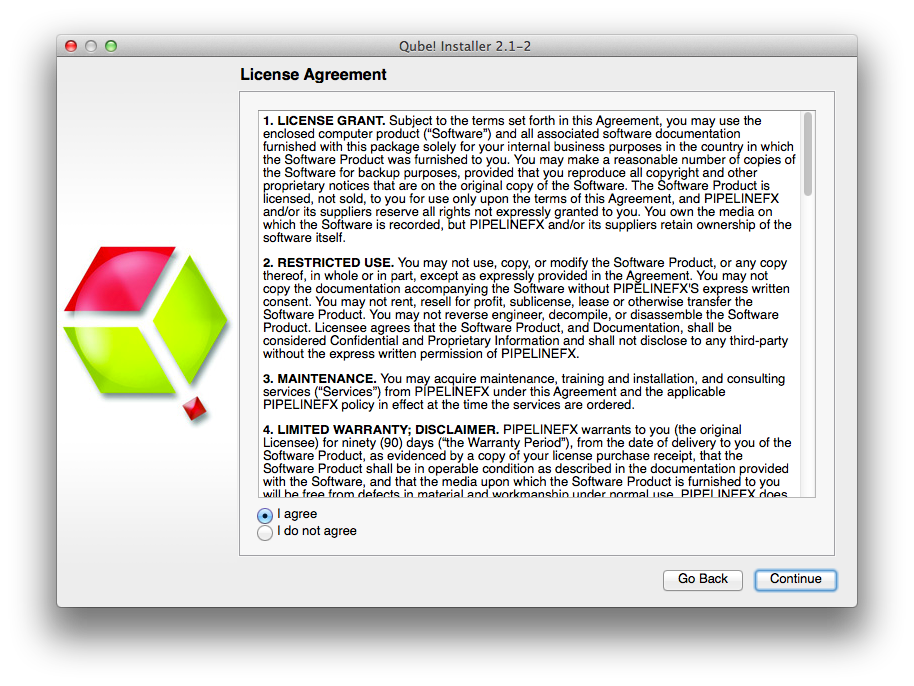
In all cases, you will now see the opening screen, followed by a license agreement, which you should read and accept before continuing. Note: Depending on your OS, the installer screens may look slightly different, but the content will be exactly the same.
You will then see a screen which is asking where the packages to be installed will come from. The default is to download them from the PipelineFX repository, and you should leave this screen at its default and hit 'Continue'. You will then be asked for a location to download the software to. You can choose anywhere, but in general you will want these packages stored in a location that is visible to all machines on the network. For simple installs or evaluations, you can just choose your local Downloads directory, as shown here.
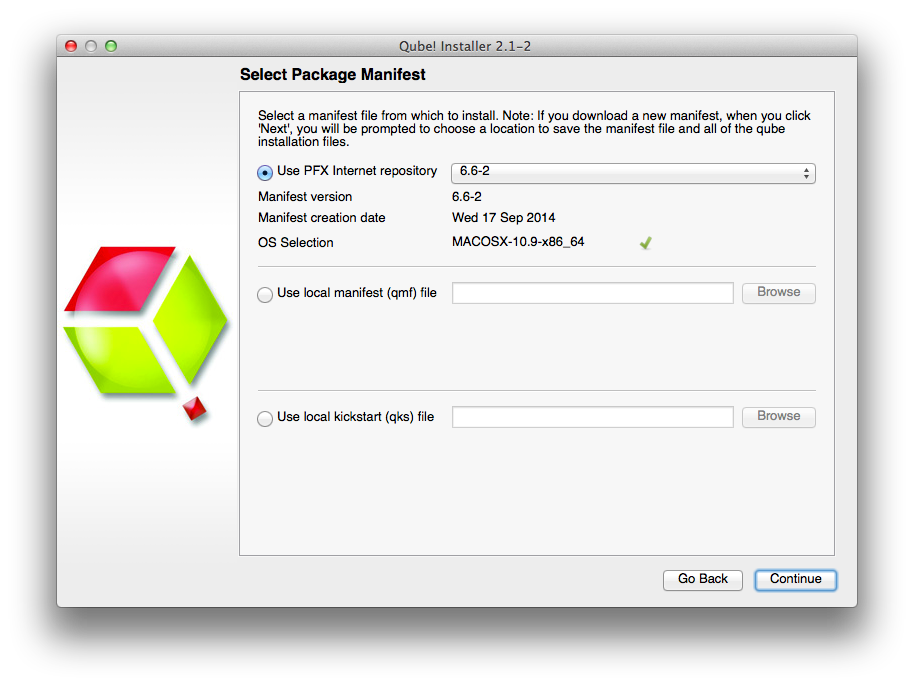
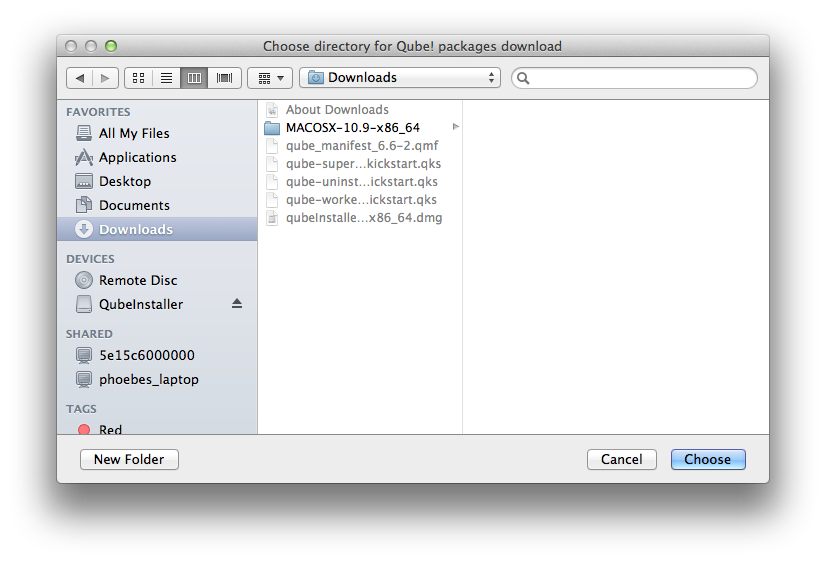
At this point you are ready to install one of the Qube! components. If this is your first install, keep reading and install a Supervisor. Otherwise, skip that and move to installing a Worker and Client, below
Install the Supervisor
The Supervisor controls and monitors the jobs that the Clients send to the Workers. There should be only one Supervisor on your network. For evaluation purposes, the Supervisor can be almost any machine, but for production use you should refer to the Supervisor guidelines on the page.
If you have been following the installer steps above, you should now be looking at the Component Selection page, shown below. Click on 'Supervisor' as shown here:
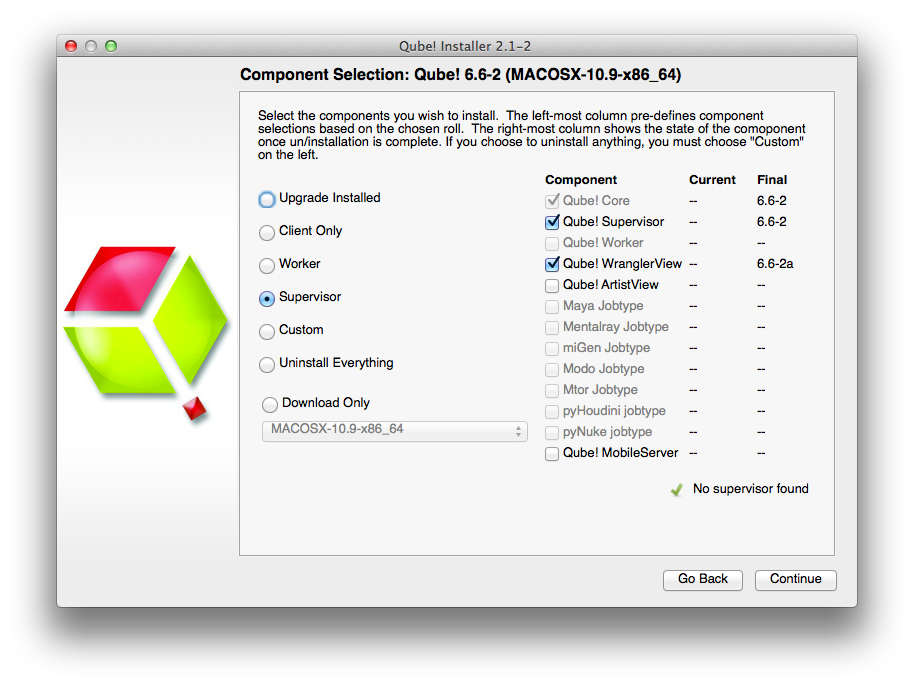
The install wizard will look to make sure there isn't already a Supervisor installed on this network / subnet, and then it will allow you to click through to install the Supervisor. First it will download the additional components, and then it will install them. You should end up with this screen:
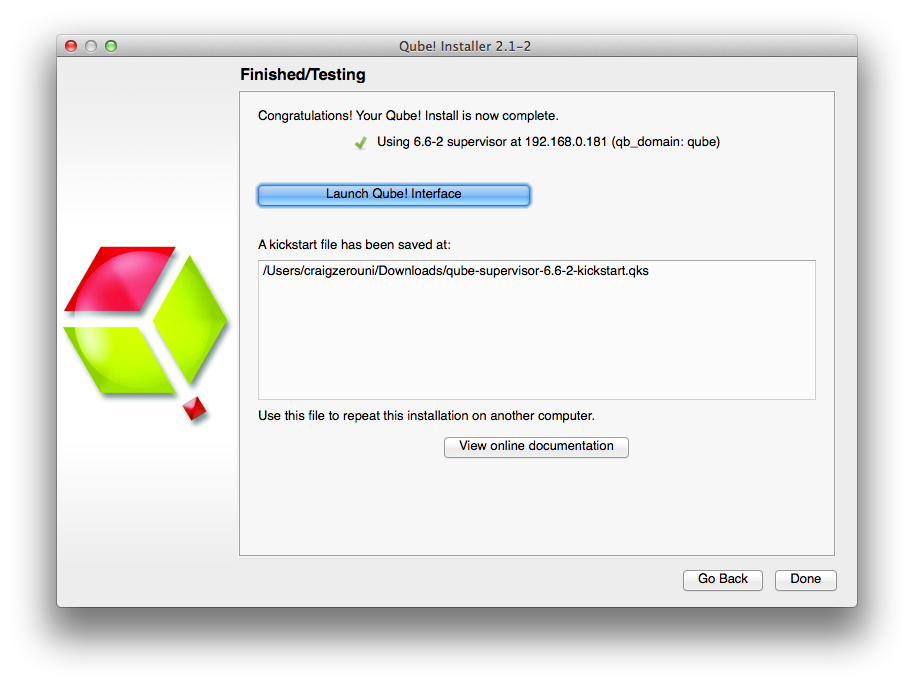
You can launch the QubeUI from here if you like, but let's keep going and finish the install. So click through to the end and exit the install wizard. But continue following the instructions on this page. If you are installing on Windows, at this point you will see a desktop icon for QubeUI.
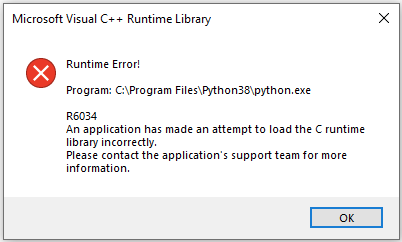
Windows: Visual C++ Runtime Error dialog when installing Supervisor
When installing the supervisor on a Windows system, you may see an ERROR dialog like the following pop up, close to the end of the installation.
This dialog can safely be dismissed by clicking its "OK" button.
Install a Worker & Client
What's the difference between a Worker and a Client?
A Worker is going to render frames or run simulations or do whatever tasks you want to submit. You want one of those on every machine that you expect to be able to pick up and execute a task.
A Client is a machine or interface that a person submits jobs from. Installing a Client really just means installing the User UI, which is a simpler version of the QubeUI. In that sense, it is optional - users can also submit from, and monitor their jobs from, the QubeUI.
User's desktop machines tend to be both Workers and Clients, so in that case you would install both. In a larger installation, there would be a lot of Workers and relatively fewer Clients. There is more detail on the page.
To do the install, we are assuming you already have a Supervisor installed on the network/subnet. You can install the Worker and Client on a different computer, or if you want to do a simple evaluation of Qube!, on the same one you just used for the Supervisor. If it is a different computer, it can have a different OS from the Supervisor - but if it does, you will need to go back to and download the appropriate installer for the Worker/Client OS.
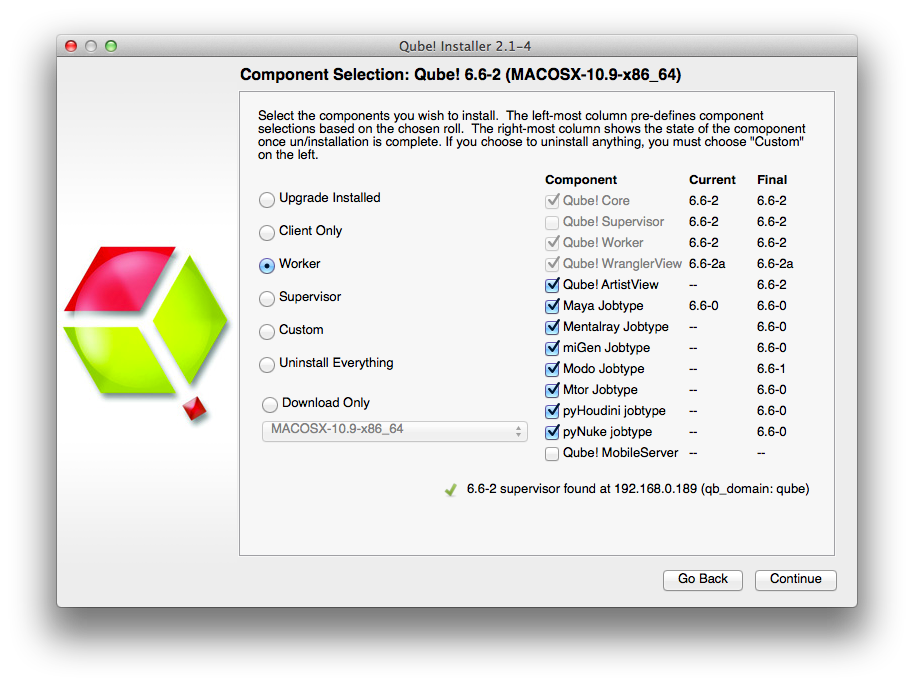
For the purposes of this Quickstart, we are going to install both Worker and Client at the same time on the same machine. again, and click through to the Component Selection screen. This time, select Worker, and then also click on the checkbox labeled "Qube! UI":
Next, you will be asked which 'mode' to run the Worker in, with a dialog like this:
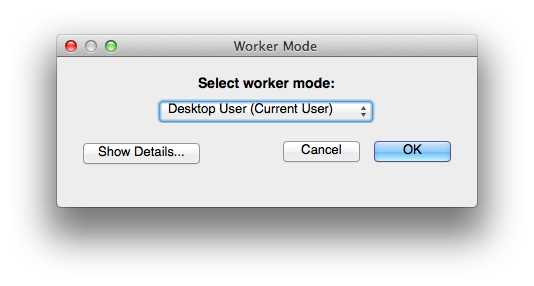
For now, choose the default, which is Desktop User mode. There is an explanation of what this means, and what mode you might want in various environments,
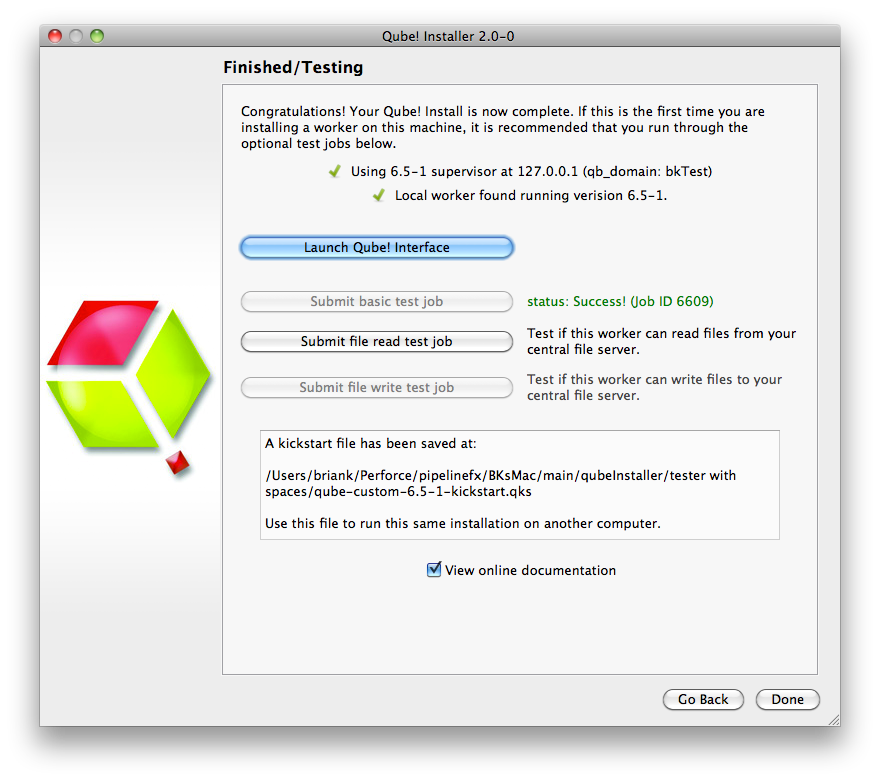
Again, the installer will download the selected components, and then install them. When this completes, you will see buttons allowing you to submit some test jobs. We'll do that in the next section. So keep reading...
Submit Basic Test Jobs
We assume you have a dialogue box on your screen similar to the above. To verify that the Qube! Supervisor is running and that the Worker and Supervisor can see each other, click on "Submit basic test job". You should see it change to "Pending" and then "Running" and finally "Success!"
Now click on "Submit file read test job". This will pop up a dialogue box. You should choose a file that is accessible to both Worker and Supervisor, typically on a mounted network drive. If you are testing Qube! such that the Worker and the Supervisor are on the same machine, then you can choose a local file.
You should then seen the same "Pending", "Running" and "Success!" messages.
If the job fails
By default, jobs run as user 'qubeproxy'. If the 'Read Test Job' fails, it is likely to be because you chose a file or directory path that is not accessible to the qubeproxy user. You can verify this is the problem by looking at the output of the job in the QubeUI. <need a link to a page that deals with this>
At this point exit the installer and launch the QubeUI.
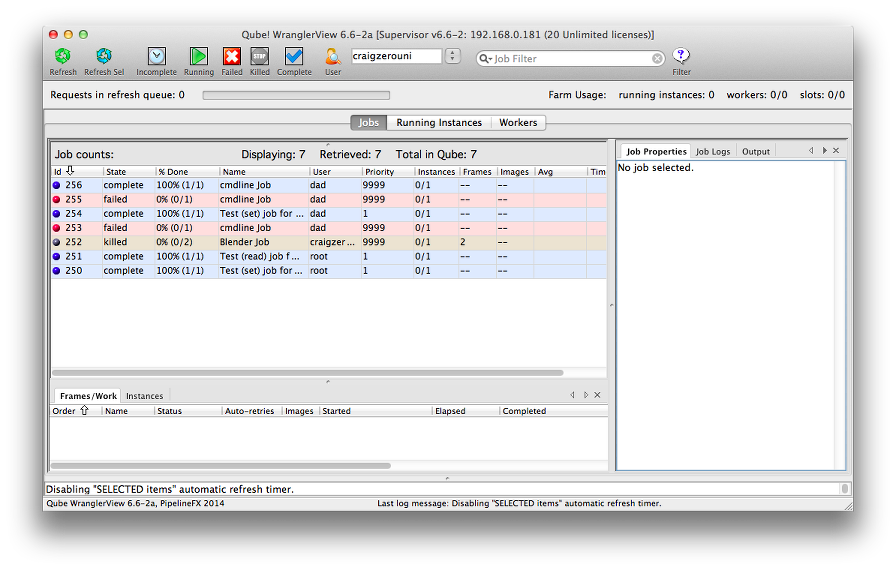
Let's use this to launch a quick commandline job, just to see how this works. From the menu bar, choose Submit -> Cmdline Job.
You'll get this UI. Fill in the command with something like the command shown (Linux & macOS):
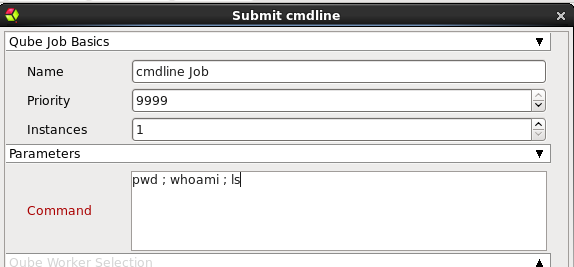
For Windows, the commands could be this:

Then click on Submit. You should see your job pick up, run and complete. The output from the commands you typed in the box will be in the right pane, under Job Logs / Stdout Log. Notice that the job runs as the user you are logged in as, while the test jobs you submitted from the installer were run as root (except on Windows, where they will still run as the person using the installer).
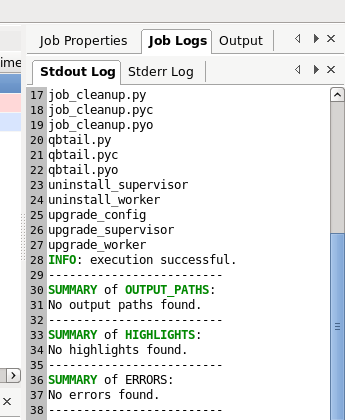
At this point, your supervisor and worker are up and going. You can install more workers and/or clients by using the installer again, or by using the kickstart files. You can find help with submitting specific kinds of jobs, for example Maya or After Effects, in the section.
Licensing
Instructions for installing licenses are on the License Installation page.