3DSMax Job Submission
Step by step instructions for submitting 3dsMax jobs with Qube!
Launch a Qube! submission UI
If you have been going through this Install Guide in order, you should be able to locate the "Qube!" menu in 3dsMax (picture). If you don't have that menu item, you need to install the QubeUI 3dsMax In-App Submission UI on the client.

With a scene loaded in 3dsMax choose "Submit Render...".
Note that you could also choose "Submit Batch Render..." depending on your requirements.
What's the difference?
Submit Render will open a copy (instance) of 3dsMax on the Worker that picks up the job, and that instance will render frames as assigned by the Supervisor. Since the scene file is only being opened one time, this can be faster to generate the full sequence.
Submit Batch Render will use the command line to open a new instance of the 3dsMax file for each frame that it renders. Although this can be slower for large scenes, it can also be more flexible in large, complex environments.
Job Submission Details
This will present a pre-filled submission UI like the one shown below.
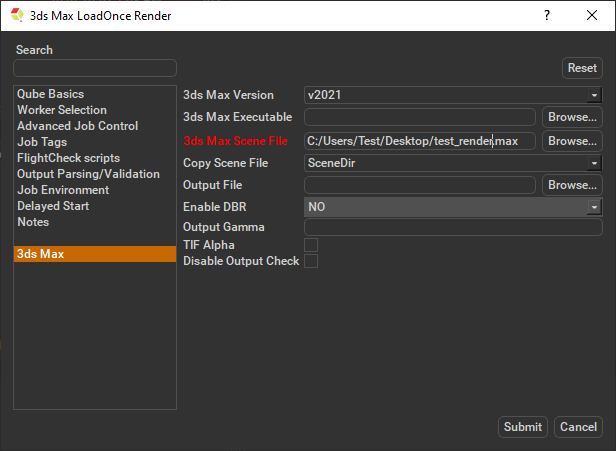
Ensure sections marked in red have the correct details.
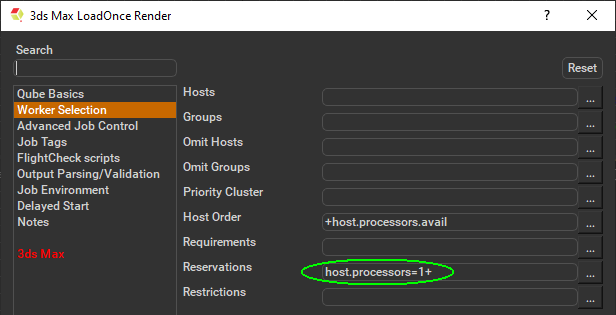
Because 3dsMax doesn't allow thread control, you need to make sure that each instance of 3dsMax occupies the full Worker. By default the "3ds Max Batch Render" submission sets the reservation to "host.processors=1+", but to do this manually select "Worker Selection" and click on the '...' button next to the right. Check the box marked "All" and accept. You should end up with the parameter "host.processors=1+" as shown here.
Submit
Click 'Submit'
