Maya Job Submission
Step by step instructions for submitting Maya LoadOnce jobs with Qube!
Install the Qube! Submission UI into Maya
(First Time Only)
If you want the submission menu inside of Maya (recommended) then install the InApp plugins via the QubeUI application as shown here. To do this, launch the QubeUI:
-
Windows: Double-click the color desktop icon
-
macOS: Find the color icon in Applications/pfx/qubeui and double-click on it
-
Linux: Type 'qubeui' at the command line (without the quotes)
Then navigate to the File menu, choose "Install App UI" and choose the Maya option. This will install ALL Maya submission UIs. You will need to do this on every workstation that you intend to submit Maya jobs from.
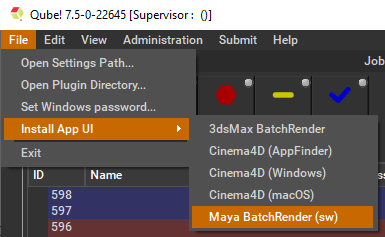
Launch a Qube! submission UI
Once installed you should be able to locate the "Qube!" menu in Maya's menu bar.
With a scene loaded in Maya choose "Submit Maya Render Job...".
Note that you could also choose "Submit Batch Render..." depending on your requirements.
Render vs Batch Render
What's the difference?
Submit Maya Render Job will open a copy (instance) of Maya on the Worker that picks up the job, and that instance will render frames as assigned by the Supervisor. Since the scene file is only being opened one time, this can be faster to generate the full sequence.
Submit Batch Render will use the command line to open a new instance of the Maya file for each frame that it renders. Although this can be slower for large scenes, it can also be more flexible in large, complex environments.

Job Submission Details
Parameters Specific to Maya.
While not strictly required, the following settings are useful for getting a better result.
-
Optimize the use of cores. Set the "Slots = Threads" checkbox and then set the "Specific Thread Count" to a value like 8 (assuming you have 8 cores).
-
Maya 2016.5 introduced a new render layer paradigm. To render scenes which may contain both the new and legacy render layers choose the 'Legacy Render Layers' checkbox to set the 'Job Environment' variable 'MAYA_ENABLE_LEGACY_RENDER_LAYERS'.
Not all sections need to be filled in in order to render only the fields marked in red are required
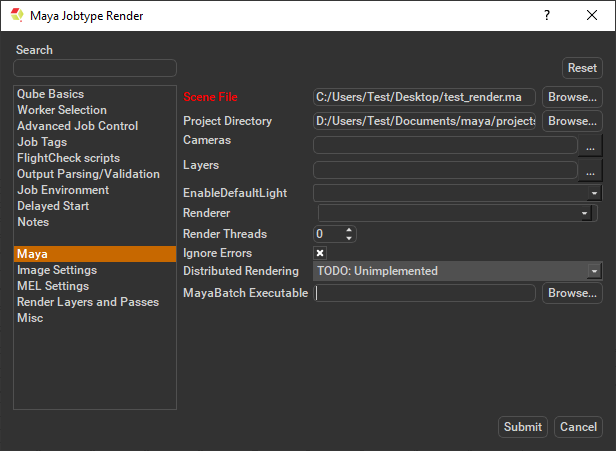
Scene File
Path to Maya scene (required). Browse for or enter manually the location of the scene file to be rendered. This is a required field for submission.
Important: Best practice is to ensure the scene file and all of its dependent files such as textures are on network storage accessible by the workers.
Project Directory
Path to Maya project directory. If you are submitting from Maya, this will be filled in for you. Otherwise, browse for or enter manually the location of the project directory.
Important: Best practice is to ensure the project directory and all of its dependent files such as textures are on network storage accessible by the workers.
Cameras
List of cameras to use for render (space-separated). Choose from pre-populated list and or enter manually cameras to override scene settings.
Layers
List of layers to render (space-separated). Choose from pre populated and or enter manually layers to override scene settings.
EnableDefaultLight
Choose from drop down to override scene settings.
Renderer
Choose from drop down to override scene settings
Render Threads
Number of threads each subjob should use. This is set for you if you set the Specific Thread Count above. Set to -1 to use the value of host.processors instead, 0 to use all cores on the Worker (if the renderer supports that).
Ignore Errors
Tick the box to ignore errors. This ignores error messages that are generated during the render that would otherwise cause frames to fail.
Distributed Rendering (Unimplimented)
Enable Distributed Rendering (mental ray satellite OR V-Ray DR). Choose from the drop down to override scene settings. See also
Maya Batch Executable
Browse for or specify the path to the maya executable file (mayabatch.exe for Windows), if you want to override the auto-detected default. In normal circumstances, this field should be left blank.
Important : Be aware that if you are submitting from one OS to another, the path to the executable will be different. Qube! will handle that if you leave this field blank.
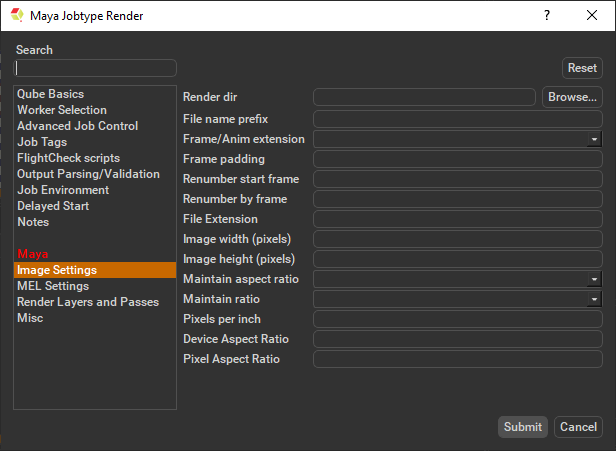
Render dir
Path to Maya output render directory. Browse to or manually enter the location of the output image file you wish to generate. You should never have to set this manually.
Important: Best practice is to ensure outputs are written to network storage accessible by the workers.
File name prefix
Image file name prefix overrides the Maya scene settings, eg in name.#.ext, name would be changed.
Frame/Anim extension
Choose from drop down to override the Maya scene settings, and position the frame numbers in the output file name.
Frame padding
Number of digits for frame number, e.g. using 4 would produce name.0001.ext.
Renumber start frame
The starting output image filename extension value. Enter the numeric value to override the Maya scene settings.
Renumber by frame
The output image filename extension step ('by' or increment) value. Enter the numeric value to override the Maya scene settings.
File Extension
The string added at the end of the file name. Enter the file extension value to override scene settings.
Image width (pixels)
Image width. Enter the numeric value to override scene settings
Image height (pixels)
Image height. Enter the numeric value to override scene settings
Maintain aspect ratio
Maintain Aspect ratio. Select required option from drop down
Maintain ratio
Maintain ratio. Select required option from drop down
Pixels per inch
Resolution (Pixels/Inch). Enter the numeric value to override scene settings
Device Aspect Ratio
Device Aspect Ratio. Enter the numeric value to override scene settings
Pixel Aspect Ratio
Pixel Aspect Ratio. Enter the numeric value to override scene settings
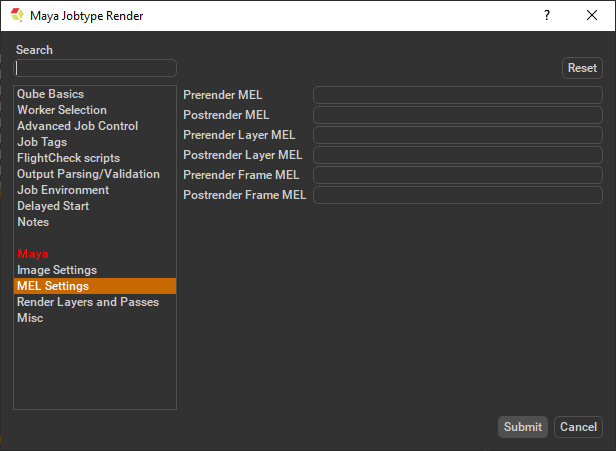
preRenderMel
The mel string to be executed before a scene is rendered. Enter the script string.
postRenderMel
The mel string to be executed after a scene is rendered. Enter the script string.
preRenderLayerMel
The mel string to be executed before a render layer is rendered. Enter the script string.
postRenderLayerMel
The mel string to be executed after a render layer is rendered. Enter the script string.
preRenderFrameMel
The mel string to be executed before a frame is rendered. Enter the script string.
postRenderFrameMel
The mel string to be executed after a frame is rendered. Enter the script string.
Submit
Click 'Submit'
For further details on the submission UI see below.
