Cinema4D macOS Submission
Step by step instructions for submitting Cinema4D macOS jobs with Qube!
Install the Qube! Submission UI into Cinema4D
(First Time Only)
If you want the submission menu inside of Cinema4D (recommended) then install the InApp plugins via the QubeUI application as shown here. To do this, launch the QubeUI:
-
Windows: Double-click the color desktop icon
-
macOS: Find the color icon in Applications/pfx/qubeui and double-click on it
Then navigate to the File menu, choose "Install App UI" and choose the Cinema4D (macOS) option. This will install the Cinema4d (macOS) submission UI only. You will need to do this on every workstation that you intend to submit Cinema jobs from.
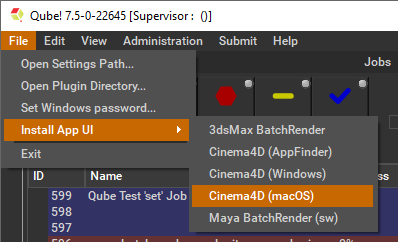
Launch a Qube! submission UI
Once installed you should be able to locate the "Qube!" menu in Cinema4D's menu bar via Extensions -> User Scripts -> Qube_Submit -> Qube! Submit (macOS).
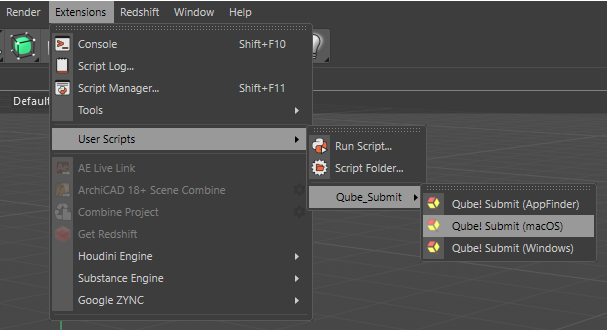
AppFinder vs macOS vs Windows
What's the difference?
Qube! Submit (AppFinder) uses information from the worker to determine if it is running Windows or macOS, and then use the render executable specific to that platform.
Qube! Submit (macOS) assumes the targeted workers are running macOS.
Qube! Submit (Windows) assumes the targeted workers are running Windows.
Job Submission Details
Parameters Specific to Cinema4d (macOS)
Not all sections need to be filled in in order to render only the fields marked in red are required
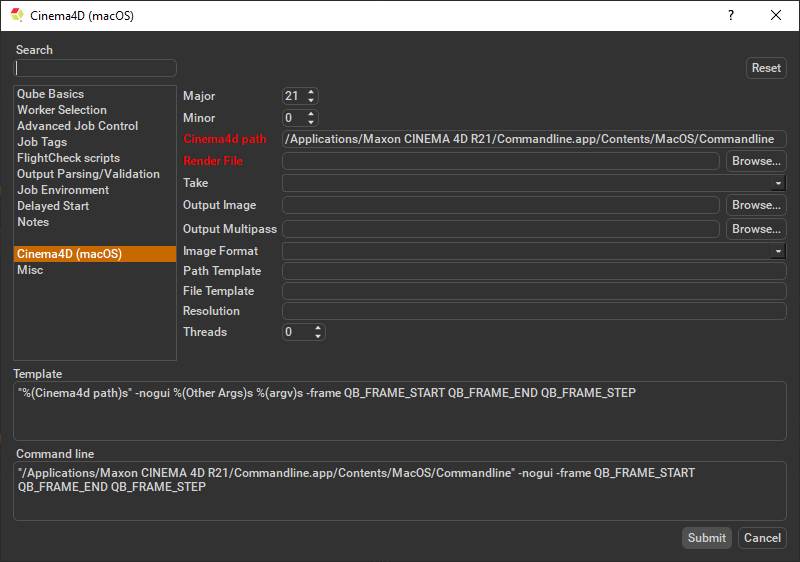
In progress, check back soon.
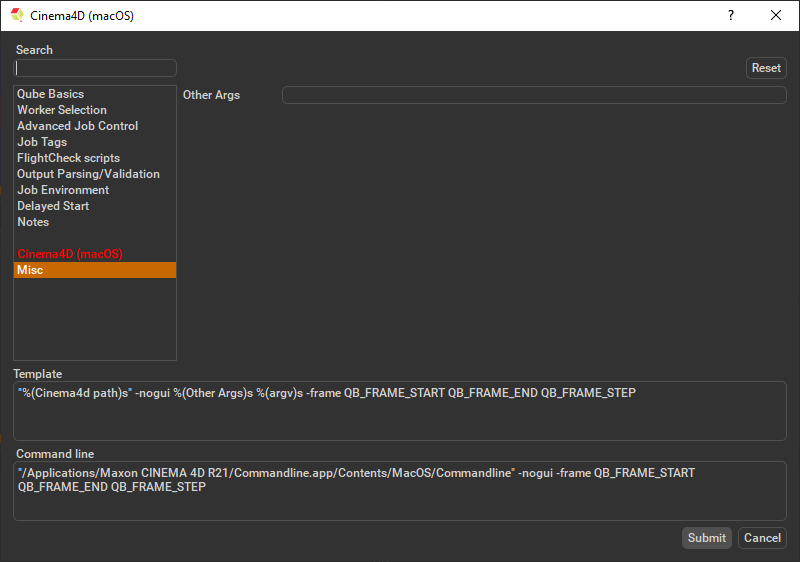
Other Args
Location to add additional args to the command line.
Submit
Click 'Submit'
For further details on the submission UI see below.
